




AFFILIATE PLATFORM
Partner Account Guide
This guide will help you start a productive and mutually beneficial cooperation. Working with the affiliate platform is simple and effective, which you will soon see for yourself.
The data shown in the examples are taken from a test account and do not relate to any real partners, as all data from affiliate accounts is confidential commercial information and is not disclosed.
Section 01
Home Page
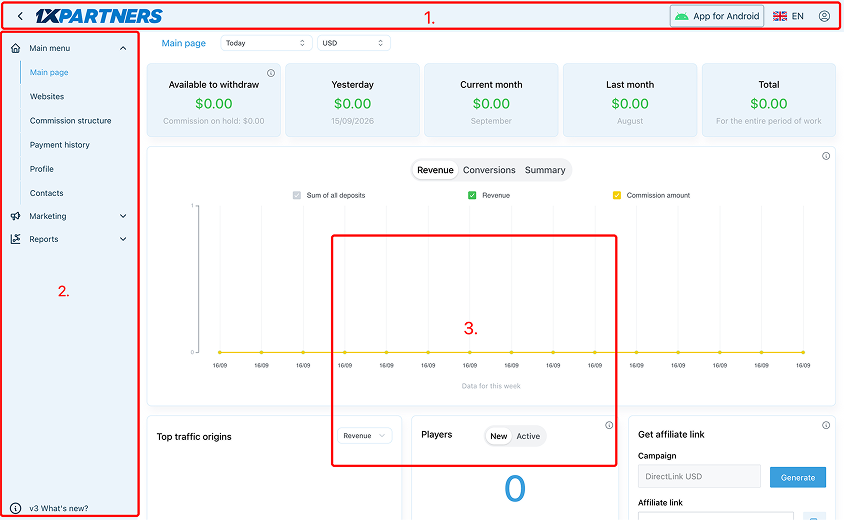
The first thing you will meet in the Personal Account is the main page of the site, which, like all other sections, consists of three main blocks:
- 01
Header (Top Bar)
Basic functionality of profile data management, language change, support and motion typing of the mobile application.
- 02
Side Panel (Left Menu)
A vertical menu — a side panel that provides navigation by sections and partitions of the interface.
- 03
Central Content Block
Displays the basic information, analytics, graphics and workspairs associated with the selected section, as well as a piper with legal information and additional sections.
To ensure uninterrupted access for your users, you should either update the domain in your links yourself or log in to your Personal Account and copy the new link in full. There is no need to create a new link each time – it will be updated automatically in the list of available links.
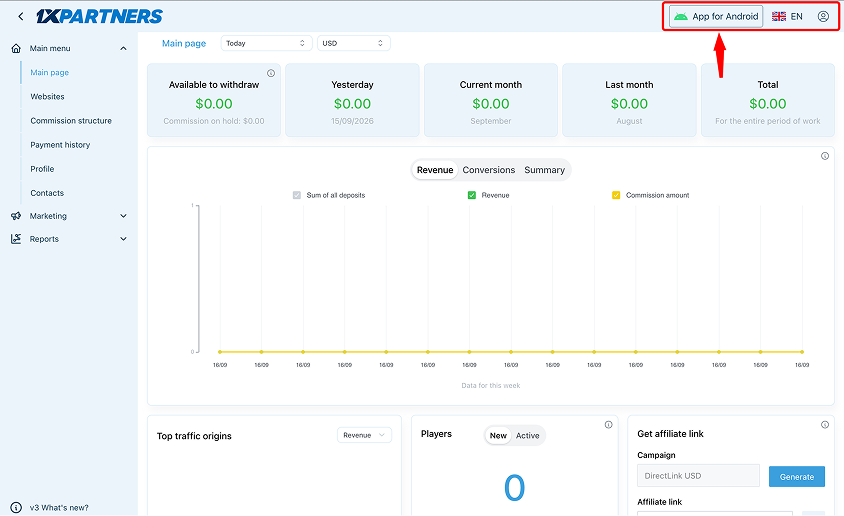
On the right side of the page, there is an “App for Android” button for downloading the APP file.
There is also an “Ask a question” button, through which you can send a message to support. Next, you will find the language switcher for the Affiliate Program website, and in the “Profile” section — your unique Aff ID, which can be used instead of your login or email when contacting our managers or support.
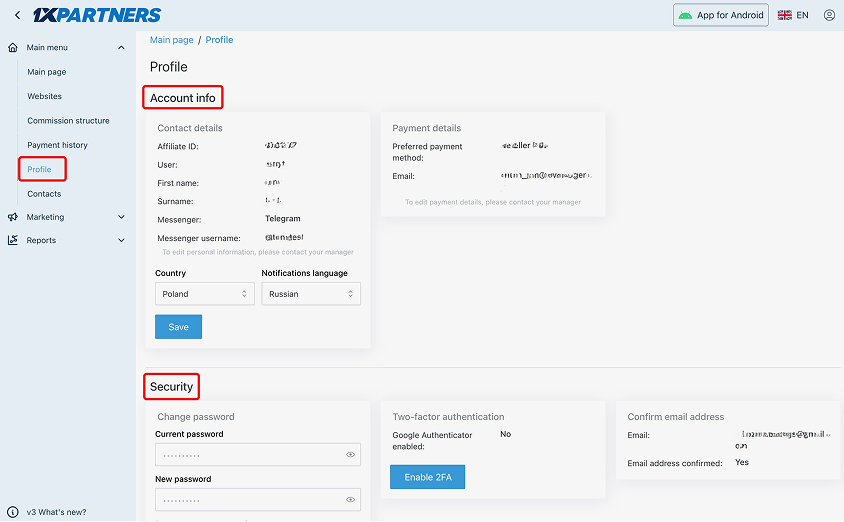
When clicked, an additional menu opens, from which you can log out of your account or go to your Profile via the “Account Settings” section, where your details are displayed.
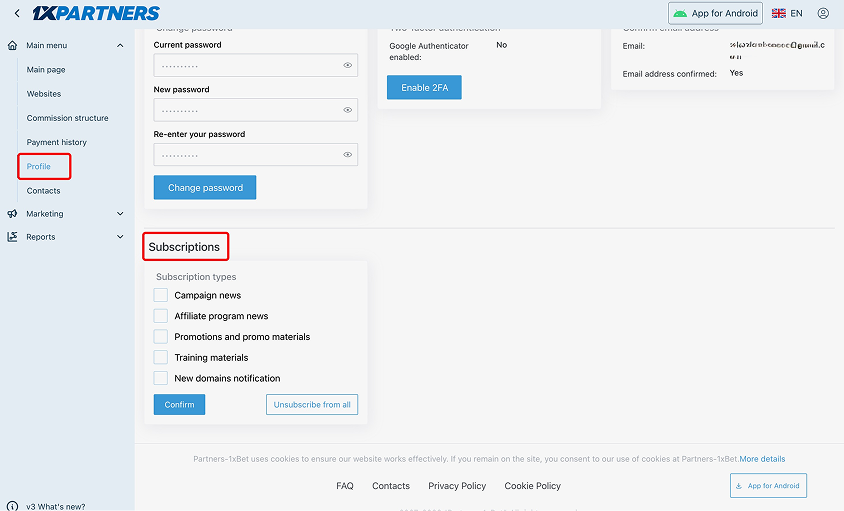
Here, you can edit some of your information, change your password, enable two-factor authentication (2FA) to enhance your account security, or disable email notifications about domain changes.
The Home Page displays the main account data; however, for a detailed analysis of your performance, we recommend using the Reports section
Dashboard KPI Metrics
Example — how the KPI strip looks on the main page:

- Available for withdrawal
- Data for the current payment period. By default, this is a week (Mon–Sun). The data appears every Monday (approximately in the afternoon) for the previous week and resets on Tuesday after the payment is made (if it has been processed).
- Yesterday
- Data for the previous day, updated at night.
- Current month
- Data for the current month (starting from the 1st), excluding the current day, as daily calculations are completed at the end of the day.
- Last month
- Data for the last 30 days, excluding the current day.
- Total
- Statistics for the entire period, from the first day you started referring players up to the most recent payout accrual.
- Chart
- Visually displays the days (or months) of growth and decline in your traffic. It can be generated for different periods, and you can enable or disable specific displayed parameters
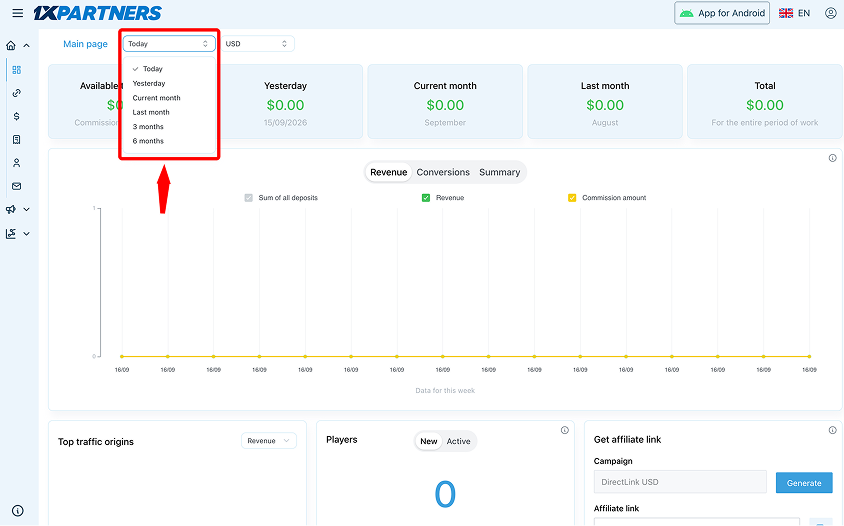
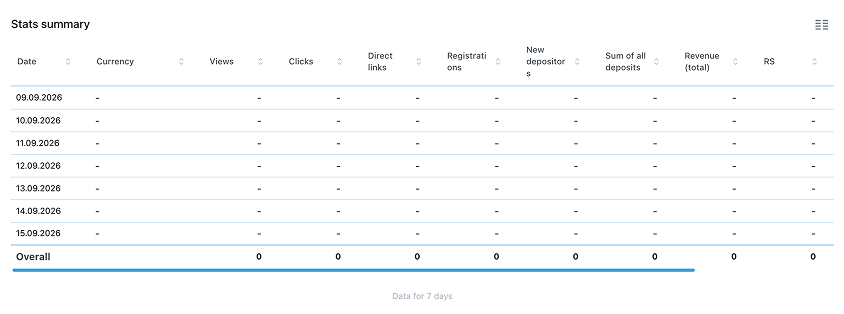
Below, you can find quick statistics for the main report sections. By default, the data is shown for the last 7 days (including the current day). For more details on each section, please refer to the Reports description.
Section 02
Websites
Mandatory requirement for cooperation. Providing an up-to-date traffic source is a mandatory requirement for cooperation. Therefore, to specify your resources, you need to go to the Websites section, fill in the required fields, and click “Add website”.
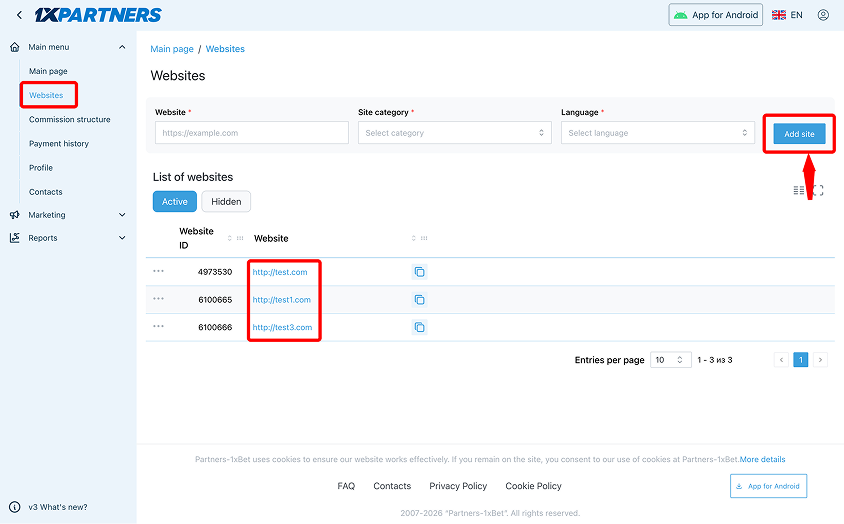
The website will appear in the list, as well as in a special field when generating links. This is necessary so that we can see which traffic sources your players come from and ensure that prohibited types of traffic are not being used to promote.
This also allows you to create different links and then track the effectiveness of your traffic.
Next in the menu is the Marketing section, without which you will not be able to start working, and we will not be able to track your results.
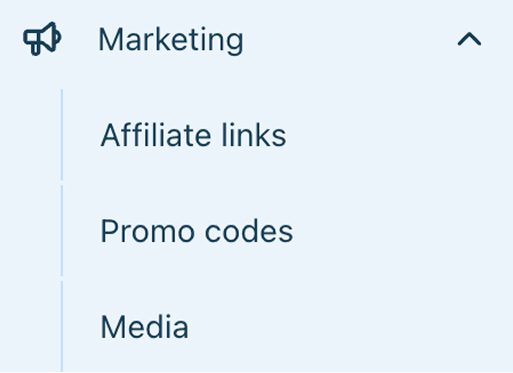
The main promotion tools are affiliate links, media, and promo codes. All of them have a unique identifier, which allows us to determine which partner the players came from and assign them to that partner.
Section 03
Affiliate Links
To obtain a link, go to the Marketing section and select “Affiliate Links.” Then choose a website, specify the currency in the “Currency” field, select a campaign in the “Campaign” field, and click the “Generate Link” button.
- Marketing
- Affiliate Links
- Select Website
- Currency
- Campaign
- Generate Link
The “Target Page” and “SubID” fields are optional and serve as additional tools

Target Page
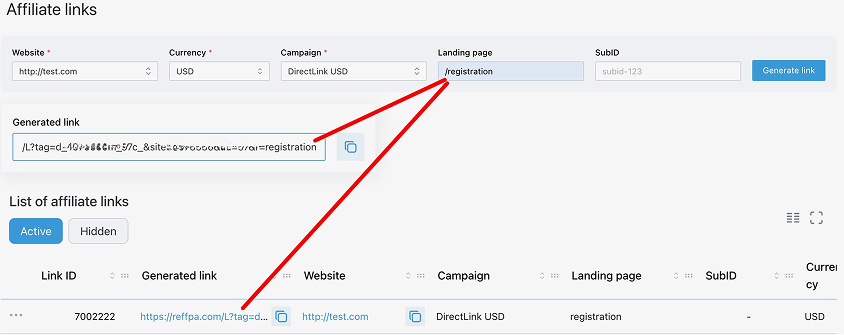
Using the “Target Page” field, you can generate a link to any internal page of the bookmaker’s website (Bonuses page, Line, Live, a specific match, etc.).
For example, to generate a link to the registration page, you need to copy the part of the URL without the domain, starting from the first slash character, like this:
/registration
Then paste it into the “Target Page” field and click “Generate Link.”
SubID
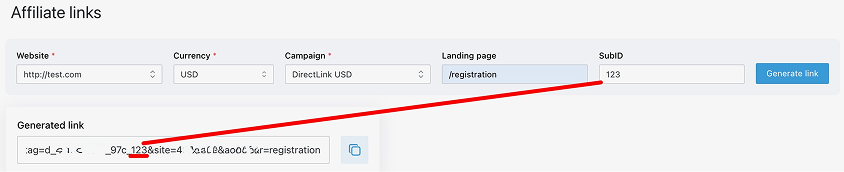
The “SubID” parameter is used for segmenting links and tracking their effectiveness. For example, by placing several links on the same website under the same campaign, you can specify a different SubID for each and then track in the Marketing Tools Report what converts better. To do this, enter the required SubID and click “Generate Link.”

You can create a link that includes both a Target Page and a SubID for specific websites. All of this can later be tracked in the Marketing Tools Report and helps evaluate the quality of your traffic.
Section 04
Media
Media (banners) in your Personal Account already contain your affiliate link.
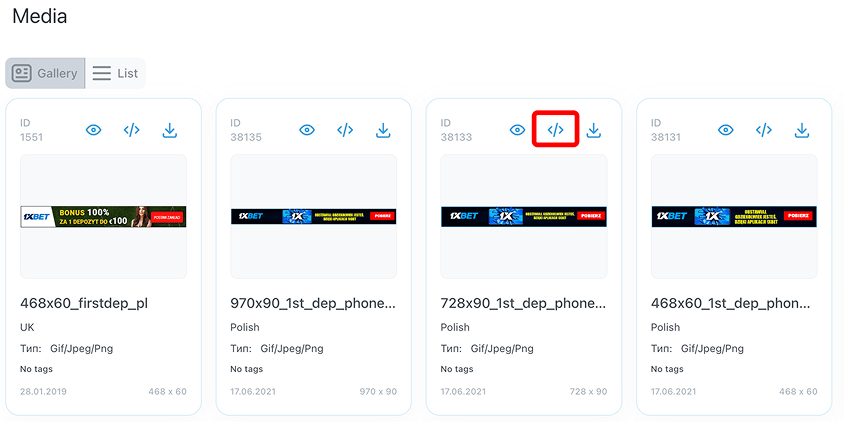
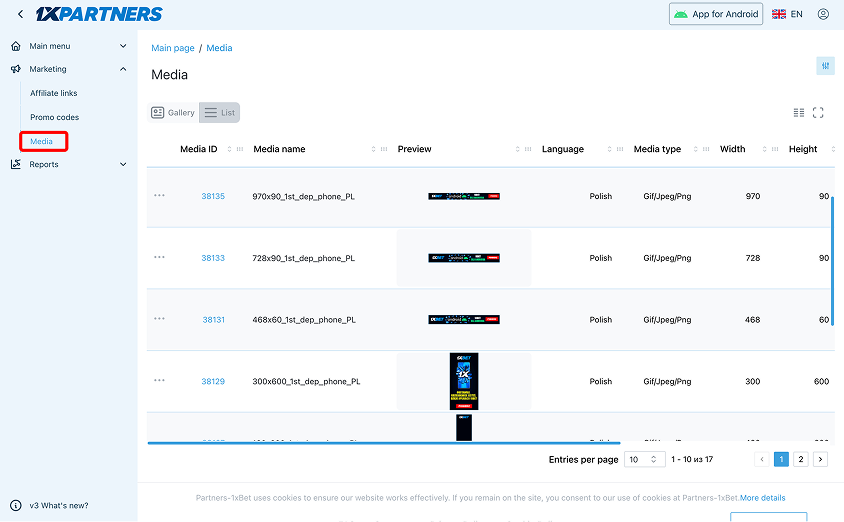
To obtain them, go to the Marketing section and select Media. Then choose the banner you need from the list and click the “Code” button. You need to copy this code and place it on your website.
- Marketing
- Media
- Select Banner
- Click "Code"
- Copy & Place on Site
Please note that banners can be selected for specific websites and sorted by format and size.
Important! If you simply download a banner, it loses its code — it becomes just an image, and you will need to add your affiliate link to it separately. If you have any difficulties installing a banner on your website, please contact support, and a technical specialist will assist you.
Section 05
Promo Codes
Another tool for attracting players is a promo code.
A promo code has a higher priority than an affiliate link, so if a player registers using a promo code, the player will be assigned to the owner of that promo code.
The promo code must be entered during registration on the bookmaker’s website. After that, it increases the maximum possible bonus amount on the first deposit when selecting the Sports 50% bonus or the Casino 30% bonus (the terms for receiving and wagering the bonus can be found on the bookmaker’s website in the corresponding Bonuses section).
EXAMPLE — BONUS WITH & WITHOUT PROMOCODE
The maximum bonus amount a player can receive without a promo code is $100, while with a promo code it is $130 (if the Casino bonus option was selected during registration). However, the bonus amount is still equal to the deposit amount.
To generate a promo code, go to the Marketing section and select Promo codes, then choose “Website” → “Currency” → “Campaign” and click “Generate Promo Code.”
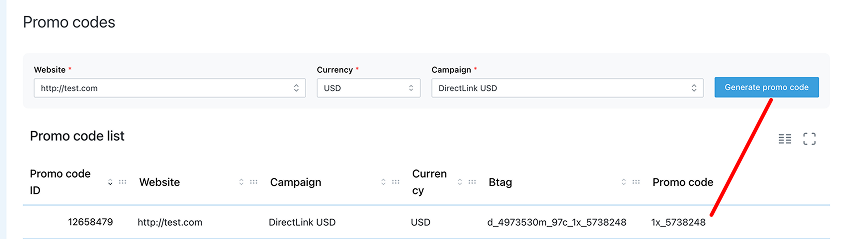
It is possible to create a custom promo code in the form of a word (in Latin characters). To do this, you should contact the affiliate program managers or support.
Important! Do not create promo codes thoughtlessly — each affiliate account has a limited number of them.
Section 06
Reports
Affiliate program statistics are updated every hour, and the calculation of affiliate commission takes place the following day.
The main rule when viewing any report: do not include “Today” if you want to see accurate data on amounts and commissions.
Since the current day has not yet been fully calculated, financial statistics may be displayed incorrectly, and the data may differ the next day. The difference occurs because the current day will then be fully processed and the data will become accurate.
Also, when selecting any period or report preset, today’s date is automatically excluded from the report. To view data for the current day, you need to select the “Today” preset or manually set the period from today to today.
On the main page of your Personal Account, you can see quick statistics such as: Available for withdrawal amount · Yesterday · Current month · Last month · Total. For more detailed statistics, there is a separate section — Reports.
Summary
Displays general statistical data for the selected period. You can also view it separately by individual websites or media sources.
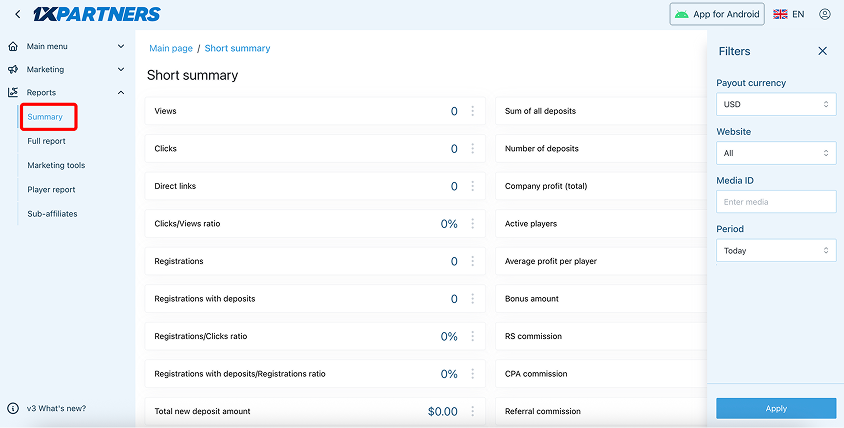
- Views and Clicks
- Apply only to banners installed on the website using the provided code. CTR is calculated accordingly if you have impressions and clicks. If you upload the banner as a simple image and add your affiliate link manually, traffic data will be displayed in the Direct Links section, just like all other links created in your account.
- Registration with Deposit
- A player who registered and made a deposit within the selected period.
- New Accounts with Deposits
- Players who registered before the selected period but made their first deposit during the selected time frame.
- Accounts with Deposits
- The number of players assigned to you who made a deposit during the reporting period, as well as the total amount of deposits made by those accounts.
- Revenue
- The total amount of money lost and won by your players during the selected period (in simple terms, the bookmaker's revenue).
- Bonus Amount
- Bonuses wagered by your players. They are always counted as a negative value, since they represent a player's winnings
- Commission Amount
- Your income expressed as a percentage. To correctly calculate your RS, you need to add the Bonus Amount (always 0 or a negative number) to the Revenue, and then calculate your percentage from that total.
COMMISSION CALCULATION FORMULA — EXAMPLE
Revenue $1,000 + Bonus Amount (–$25) = $975 net revenue
20% × $975 = $195 Commission Amount
If a partner has CPA or Referral (sub-affiliate) commission, it is added to their Commission Amount and included in the final Total Commission figure.
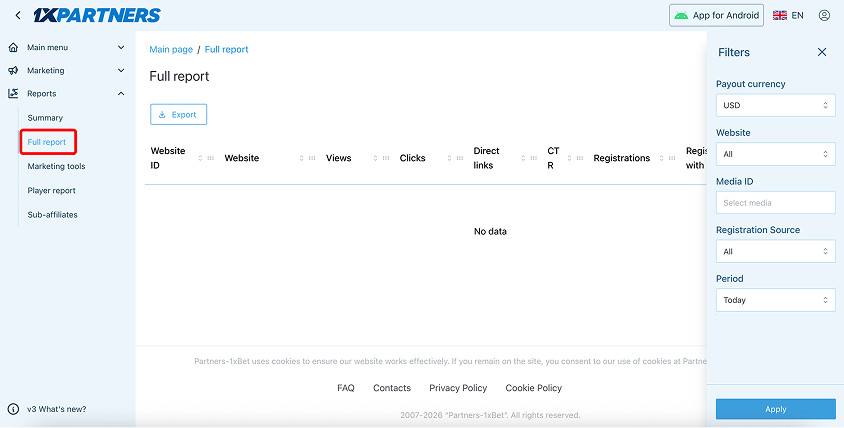
Full Report
Provides more detailed statistics for the affiliate account for the selected period. The data is broken down by websites, and in addition to the parameters available in the Summary Report, it also includes website details and its ID, the ability to export the report to Excel or CSV, and the option to enable or disable specific report sections.
Marketing Tools
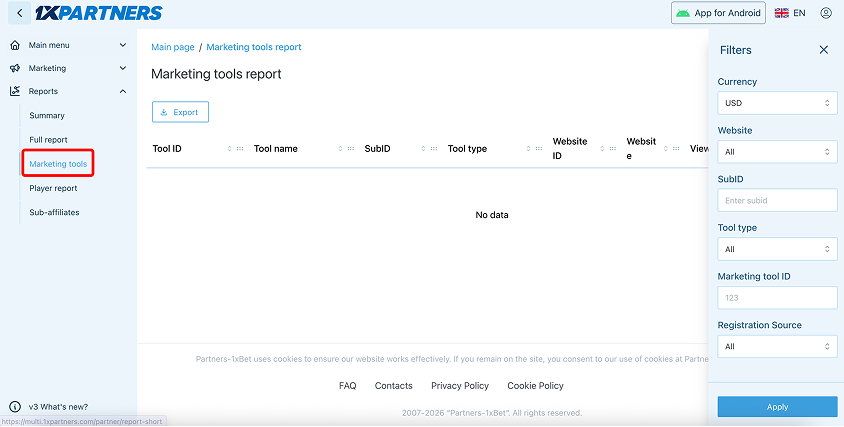
Allows you to check statistics for a specific website, link, or banner that was used for advertising.
This is the report where you can view statistics by the “SubID” parameter. It also displays promo codes, promo names, and media types — everything you need to evaluate the performance of all promotional materials on your websites or in your groups.
Players Report
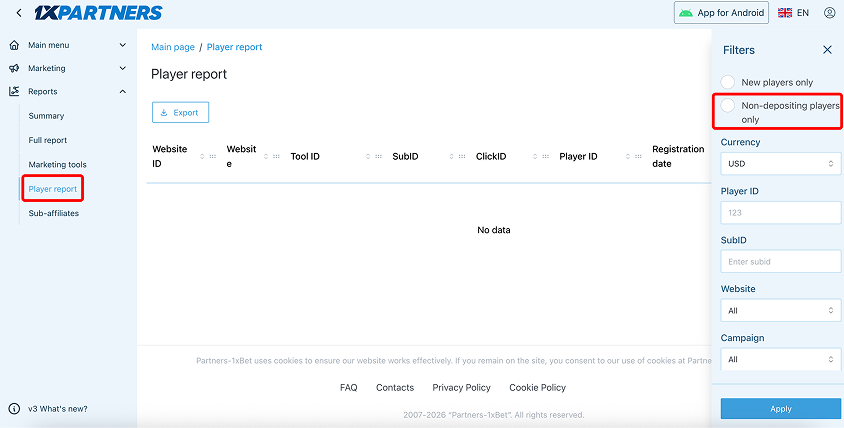
A report that displays data for each player who was active (made a deposit or placed bets) during the selected period.
You can even see the player’s ID, which is their gaming account number. New accounts appear in the report from the moment the player makes a deposit. However, by selecting the “Only players without deposits” option, you can generate a report of accounts that have registered but have not yet made a deposit.
Sub-Affiliates Report
Allows you to view statistics for attracted sub-affiliates. Activation of this type of cooperation is discussed individually with a manager.
Reports can be generated for the previous or current month, as well as for any custom period you select.
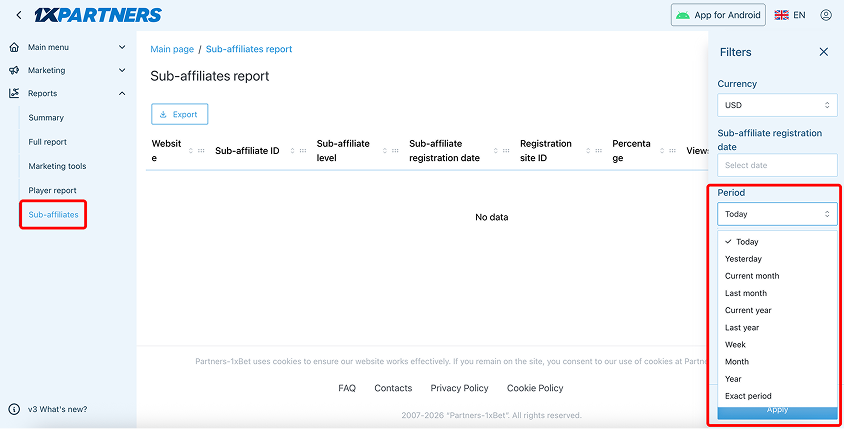
IMPORTANT! Unlike the statistics on the Home page, in any of these reports, when selecting any period, the data is displayed without the current day included.
If the “Today” period is selected, the data will be displayed including the current day.
If you decide to calculate your earned commission manually, we recommend selecting a date range that does not include the current day.
Section 07
Payment History
To receive your first payout, you need to contact the affiliate program support team. After that, payouts will be processed automatically.
Payouts are made once a week (every Tuesday) for the period from Monday to Sunday (inclusive) of the previous week, provided that the earned amount is equal to or exceeds the minimum payout threshold of $30.
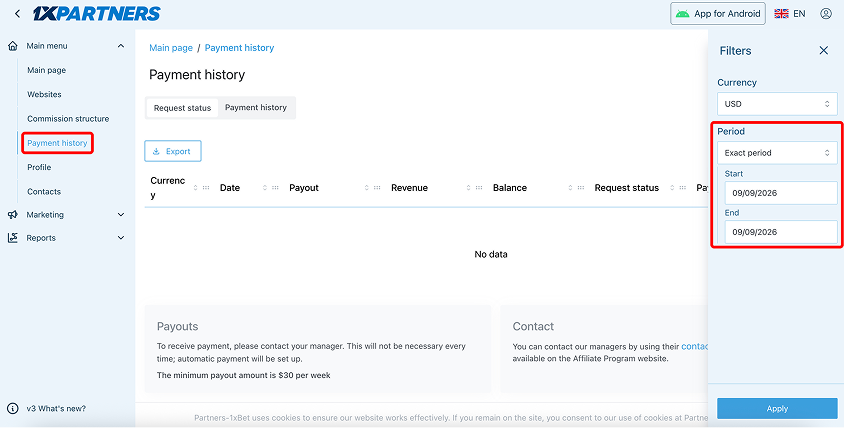
On the Home Page, you can see the amount available for withdrawal, which is generated every Monday. For more accurate information about the available amount, please check the Payout History section.
If the amount available for withdrawal is less than the minimum threshold of $30, it will be carried over until it is paid out (i.e., until it reaches the minimum payout amount). When viewing the available amount, please note that both negative and positive balances are carried over to the next period.
Tiered Commission Structure
If you have a tiered commission structure that increases your commission percentage based on the number of referred accounts with deposits, for example: by default you have 15% (Tier 1), from 101 new accounts with deposits you move to Tier 2 with 20%, and from 1001 accounts with deposits you move to 25% — the recalculation is performed at the end of the month for the entire reporting period (1 month).
This means that each month you start from Tier 1 of the tiered structure at 15%. As soon as you reach the required number of depositing accounts, the commission is calculated according to the corresponding percentage. However, since payouts are made weekly, and you may reach the next tier (for example) during week 2 or 3, the difference will be recalculated at the end of the month and included in the final total of your monthly earnings.
TIER STRUCTURE EXAMPLE
Default: 15% (Tier 1) · From 101 new depositors: 20% (Tier 2) · From 1,001 depositors: 25% (Tier 3) Recalculation is performed at the end of the month for the entire reporting period.
Section 08
Commission Structure
Here you can see your commission structure: Revenue Share, its start date, description, and end date.
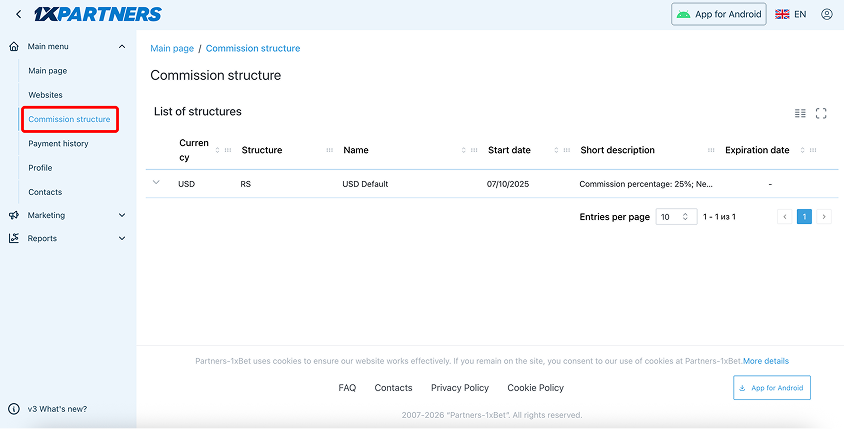
This section is for reference only. To adjust or discuss your commission terms, contact your account manager directly
Contacts
We will be glad to assist you with any questions regarding the affiliate program.
support@1xpartners.com